Tutorial
Questions and answers: the Reminders app
Build the Reminders app, see its question and answer cards, and learn how an app asks a question on the screen and gets the answer back.
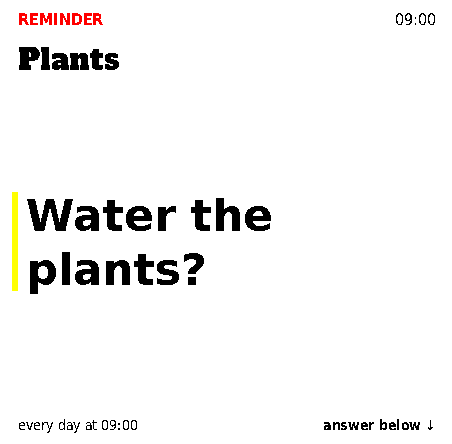
Reminders puts questions on the screen, such as “Water the plants?”, and offers up to four answers. You answer with a key press; the screen shows a short reply such as “Done ✓”; the answer goes back to the app. It needs no network, so it is a good app to learn from.
In this tutorial you build the real Reminders app, render it from its test data, and look at what it produces. Then you write a question of your own with the Python SDK.
You need the tools from the quickstart: Docker or Podman, and the SDK copied to /tmp/slowapp with a Python that has Pillow.
1. Build and render Reminders
git clone https://github.com/mike-anderson/slowapp-reminders
cd slowapp-reminders
docker build -t slowapp-reminders:dev .
PYTHONPATH=/tmp/slowapp ~/.slowapp-venv/bin/python -m slowapp_sdk fixture --image slowapp-reminders:dev --repeat
The render ends with:
1/1 examples passed; previews in out/previews
Above that line it lists 40 cards. The example renders the reminders due on 6 October 2026 at 10:00: each question has a question card and four answer cards, and each question appears once for every time it will be asked that day.
2. Look at a question
Open out/previews/. The files ending in .ask.png are question cards. When a question is shown, its question card fills the slot, and the strip below it lists the answers and the key for each.
Each answer has its own card: what the slot shows after you choose that answer. These are called rest cards, because the slot rests on them until it can refresh again.
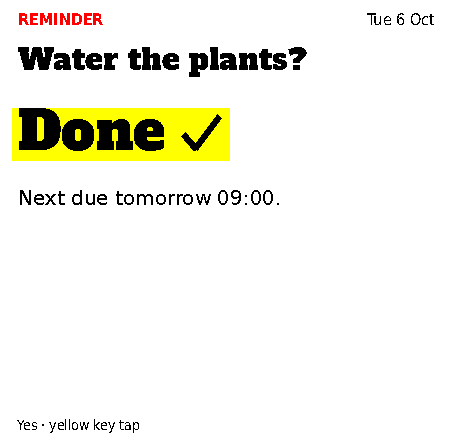
The app draws every rest card in advance. That is why an answer appears the moment you press a key: the screen already has the card and doesn’t wait for the app or the hub.
3. Read the manifest
[app]
id = "reminders"
title = "Reminders"
contract = 3
image = "ghcr.io/mike-anderson/slowapp-reminders"
memory = "48m"
tmp = "8m"
timeout_s = 30
network = "none"
prompts = true
imports = ["legacy:reminders"]   # P4 transitional: reminders.json, owned by the legacy page

[[job]]
name = "render"
expected_s = 3
daily = "00:01"

[[feed]]
name = "prompts"
size = "slot"

[[example]]
name = "due"
caption = "6 Oct 2026 10:00: watering due, NexGuard re-asks at 18:00, the vet at 15:00"
fixture = "fixtures/two-due"
now = "2026-10-06T10:00:00-07:00"
feeds = { prompts = "452x444.k4" }
prompts = trueis the grant that lets an app put questions on the screen. An app with it must have a feed namedprompts, and a screen only shows questions from feeds its layout lists as question sources.network = "none": Reminders works entirely from its own data.daily = "00:01"runsrenderonce just after midnight, as well as whenever the screen needs cards.- The example’s fixture,
fixtures/two-due/reminders.json, is the list of reminders the render reads. importsis transitional: while the app moves out of an older web page, the hub hands it that page’s reminder list. New apps don’t use it.
4. How a question works
A question, called a prompt in the files and the protocol, has:
- an id that is unique for each time it is asked;
- a window,
fromanduntil, when it may be shown; - the question text;
- up to four answers. Each has a rest card, a short line for the strip, and a small emit payload: data the screen hands back to your app when that answer is chosen. The screen never reads it.
An answer is a tap or a hold of a key. The app doesn’t choose physical keys. It names its answers by role (own.tap, spare.tap, own.hold and spare.hold), slowd decides which key plays each role, and the strip shows the key next to each answer. Reminders uses them for Yes, Not yet, Snooze and Skip.
TODO(owner): explain in one or two sentences how slowd picks the physical keys for the
ownandspareroles on the Slowboard 1085, and whether the layout controls it.
A rest card must stay true for the whole window, because the screen may show it at any time inside it. If the wording would change partway through, end the window there and ask again with a new id.
5. Write a question with the Python SDK
ctx.write_prompts takes a list of prompts. Each answer gets a Pillow image for its rest card, the strip text, and the emit payload. Here is a small app that asks one question with two answers:
from datetime import timedelta

from PIL import ImageDraw

import slowapp_kit as kit
from slowapp_kit import BLACK


def rest_card(ctx, surface, text):
    img = ctx.canvas(surface)
    d = ImageDraw.Draw(img)
    d.fontmode = "1"
    d.text((20, 20), text, font=kit.font("DejaVuSans-Bold.ttf", 40), fill=BLACK)
    return img


@kit.job("render")
def render(ctx):
    surface = ctx.feed("prompts")
    if surface is None:
        return
    ask_at = ctx.for_.replace(hour=9, minute=0, second=0, microsecond=0)
    ctx.write_prompts([{
        "id": f"water@{ask_at:%Y-%m-%dT%H:%M}@{ask_at:%Y-%m-%dT%H:%M}",
        "group": "water",
        "question": "Water the plants?",
        "from": ask_at,
        "until": ask_at + timedelta(hours=9),
        "bindings": {
            "own.tap":   {"image": rest_card(ctx, surface, "Done"),  "strip": "Done",
                          "emit": {"kind": "answer", "data": {"answer": "yes"}}},
            "spare.tap": {"image": rest_card(ctx, surface, "Later"), "strip": "Asking at 18:00",
                          "emit": {"kind": "answer", "data": {"answer": "not_yet"}}},
        },
    }])


kit.main()
The manifest needs prompts = true and a feed named prompts. The job writes /out/prompts.json and one PNG per answer:
/out/prompts.json
/out/prompts/water@2026-10-06T09:00@2026-10-06T09:00/own.tap.png
/out/prompts/water@2026-10-06T09:00@2026-10-06T09:00/spare.tap.png
write_prompts checks the ids, the window, the answer names and every rest card before writing, as write_feed does for cards.
TODO(owner):
ctx.write_promptshas no parameter for a question card (ask.png); Reminders writes itsprompts.jsonitself to include one. Say how an SDK user should add a question card, or whether the SDK will gain it.
6. Receive the answers
When someone answers, slowd sends the emit payload to the hub, which passes it to your app’s event job. Declare which kinds of emit your app accepts, and add a job named event:
[events]
accept = ["answer"]

[[job]]
name = "event"
In the job, ctx.events() returns the events as a list of dictionaries, one per answer, in the format described under Events. Answers can arrive more than once, so remove duplicates by the event’s id. Apply each answer at the time it was given (at), not the time it arrived: the hub may have been unreachable for a while. After the event job, the hub runs render again so the screen can drop answered questions.
TODO(owner): Reminders doesn’t have an
eventjob yet (answers are still applied by the old web page). Add a short, testedeventjob example here once one exists.